How to Use AI to Triage Your Inbox Without Losing Control
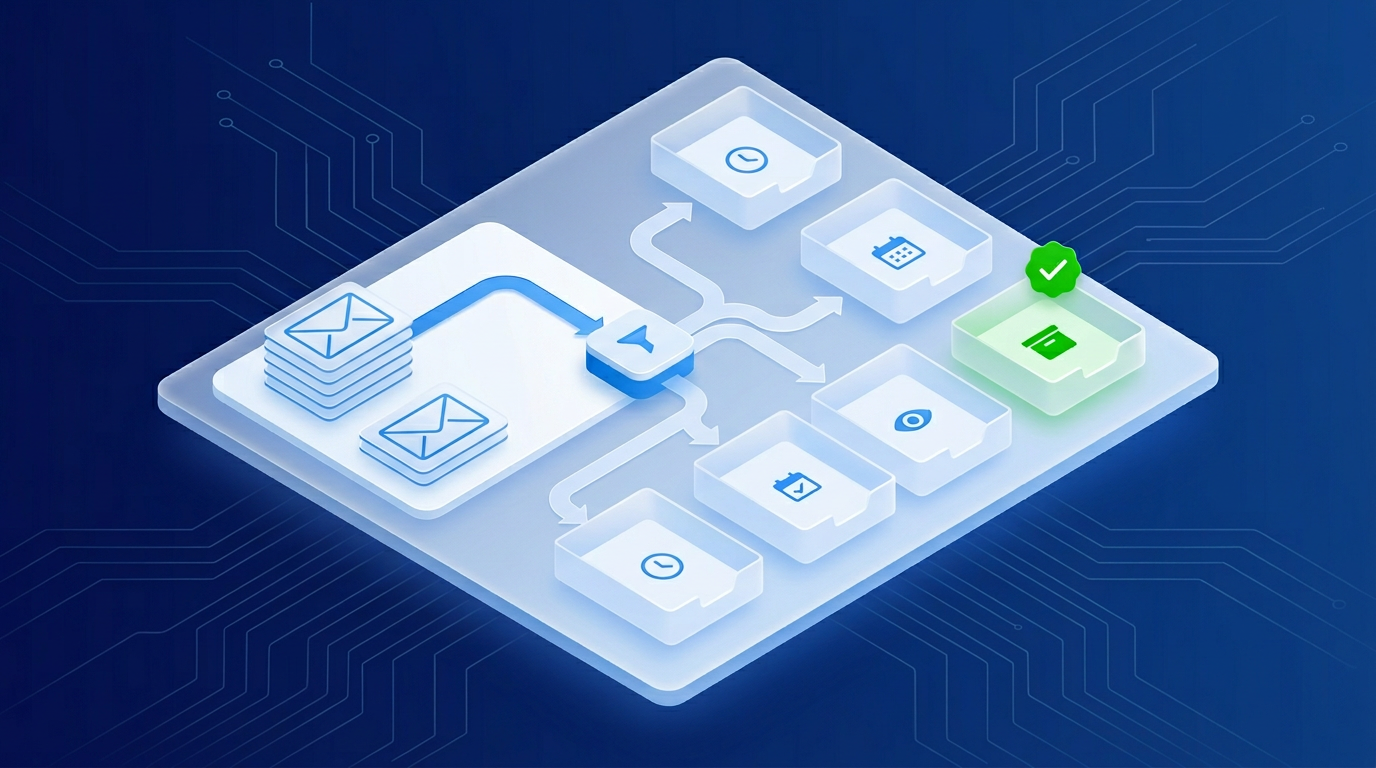
Email is one of the highest-friction parts of running a small business. It is also one of the most practical places to introduce AI — not to fully automate your inbox, but to reduce the time you spend sorting, categorizing, and drafting responses.
This post covers a triage approach that keeps humans in control while removing the mechanical repetition.
The difference between triage and full automation
Full inbox automation — AI reads emails, decides what to do, takes action without review — is high-risk for client-facing businesses. One misclassified email or poorly timed automated reply can damage a client relationship.
Triage is a more useful starting point: AI helps you sort and understand what is in your inbox so you can make better decisions faster. The actions still come from you.
Four triage categories that work for most SMBs
Before building any workflow, agree on how you want to categorize incoming email. A simple system that works for most service businesses:
- Needs response today — client requests, new inquiries, time-sensitive items
- Needs response this week — non-urgent follow-ups, proposals, updates
- FYI only — newsletters, reports, notifications that need no action
- Archive or unsubscribe — low-value recurring emails
AI can be given a clear description of each category and asked to sort your unread emails into these buckets. This takes the scanning work off your plate.
Using AI for draft responses
Once high-priority emails are identified, AI can draft a first-pass response for you to review and send. This works best when:
- You provide a brief note on what the response should cover ("confirm appointment, ask for parking instructions")
- The AI uses a saved prompt with your preferred tone and closing format
- A human reviews and sends — AI does not send directly
The value is removing the blank-page problem. The draft takes two minutes instead of eight.
What not to automate in your inbox
Some email actions should stay manual regardless of efficiency gains:
- Responses to complaints or disputes
- Anything involving pricing, contracts, or scope changes
- First responses to new client inquiries (tone matters too much at that stage)
- Any email that requires judgment about a specific client relationship
If you are not sure, default to manual. You can always expand automation later once you understand where the risk is low.
SMB example: independent mortgage broker
A mortgage broker was spending 45–60 minutes every morning sorting her inbox before she could start client work. She introduced a simple AI triage step: paste the subject lines and senders of unread emails into a prompt, get back a sorted list by category.
She cut morning inbox time to 15 minutes. She did not automate any sending — just the sorting. That one change compounded across five days a week.
She later added draft templates for common follow-ups, which she edits and sends manually.
A practical starting point for this week
You do not need a dedicated tool to start. A basic inbox triage prompt you can use today:
"I'm going to paste a list of email subjects and senders. Sort them into four groups: respond today, respond this week, FYI only, and archive or unsubscribe. Here is the list: [paste subjects and senders]"
Run it on your inbox once. See whether the categories are useful. Adjust the descriptions if needed. That is the whole first step.
Keep exploring
For a broader framework on which workflows to automate first, read What to Automate First When You Have No Ops Team and Automation That Doesn't Break: The 3 Guardrails Every SMB Needs. To map your full workflow automation opportunities, start the AI Readiness Audit or contact FIT.